> ## Documentation Index
> Fetch the complete documentation index at: https://docs.maedo.in/llms.txt
> Use this file to discover all available pages before exploring further.
# Quickstart
> Get the Maedo Webchat widget on your site in seconds.
Integrating Maedo Webchat is as simple as adding a single script tag to your HTML.
### Get your embed code
To embed an agent on your website, you first need its Webchat embed code.
1. Log in to the [Maedo Dashboard](https://app.maedo.in).
2. Select your agent and go to **Webchat > Deploy Settings**.
3. Copy the **Embed code**.
```html theme={null}
```
### Add to your website
Next, add the Webchat embed code to the `` section of your website's HTML. For example:
```html index.html theme={null}
```
### You're all set!
Open your website and start chatting with your bot. It should look something like this:
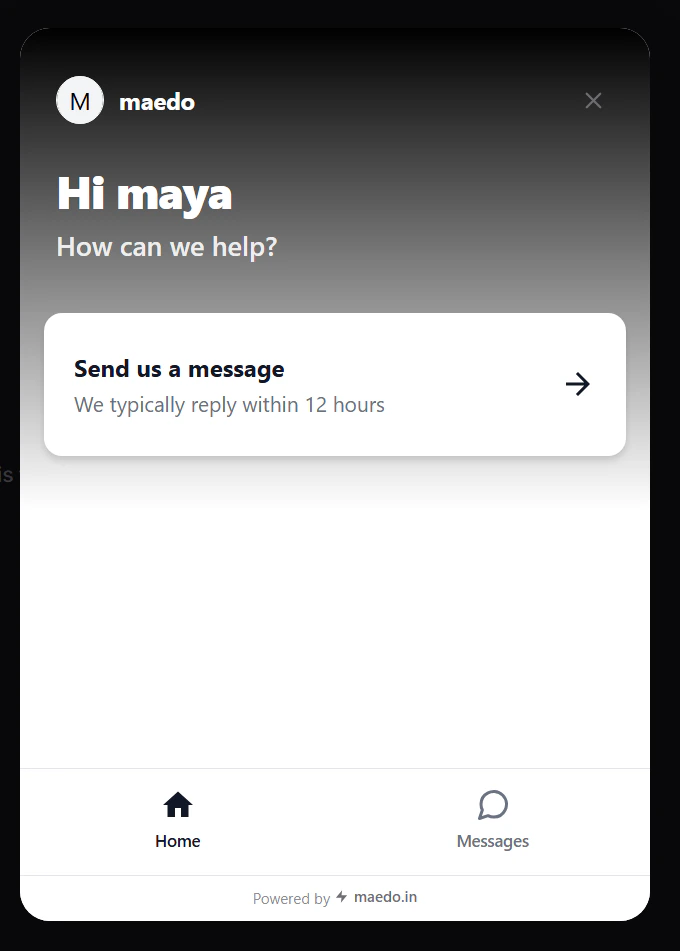 Done! Your bot is now live on your website.
## Next steps
Now that you've added your bot, try [styling it](/agents/configure) to match the rest of your website's user interface.
Go back to the overview and core concepts.
Deep dive into customization and settings.
Done! Your bot is now live on your website.
## Next steps
Now that you've added your bot, try [styling it](/agents/configure) to match the rest of your website's user interface.
Go back to the overview and core concepts.
Deep dive into customization and settings.