
Get your Maedo AI workforce running and integrated into your application.
1

Get your embed code

Get your embed code

First, you need to generate an embed code for your agent from the dashboard.
  1. Sign up or log in to your account.
  2. Create a new agent or select an existing one.
  3. Navigate to Webchat > Deploy Settings and copy the snippet.
<script defer src="https://cdn.maedo.in/scripts/webchat/widget-v2.js" data-agent-config="YOUR_AGENT_TOKEN_HERE"></script>
2

Add to your website

Add to your website

Next, add the Webchat embed code to the <head> section of your website’s HTML. For example:
index.html
<!DOCTYPE html>
<html>
  <head>
    <script defer src="https://cdn.maedo.in/scripts/webchat/widget-v2.js" data-agent-config="YOUR_AGENT_TOKEN_HERE"></script>
  </head>
  <body>
    <!-- Website content -->
  </body>
</html>
3

You're all set!

You’re all set!

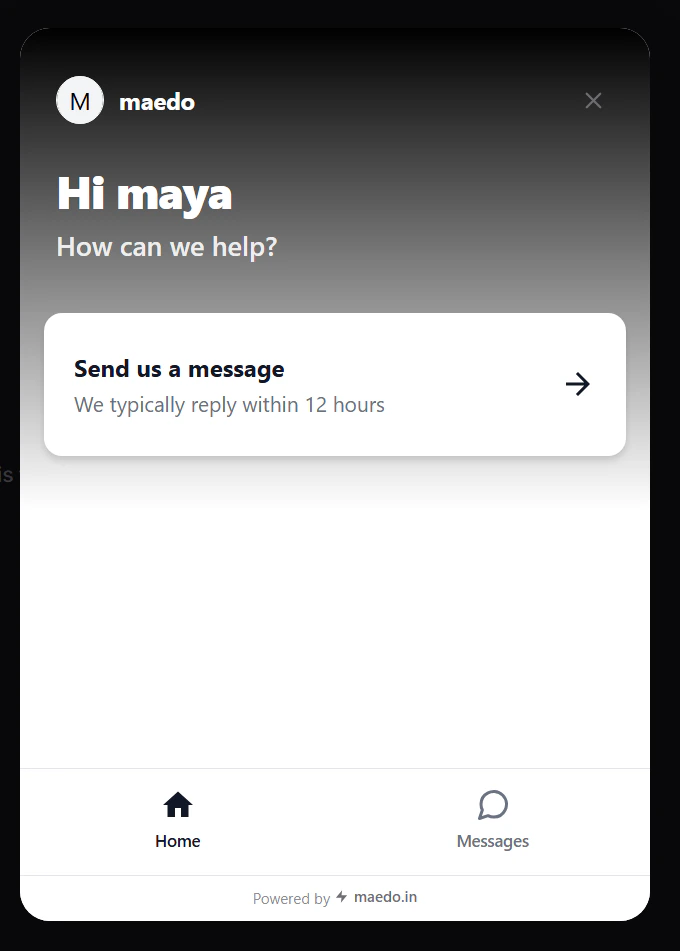
Refresh your site and start chatting with your new AI workforce.Maedo Webchat Preview
Done! Your bot is now live on your website.

Next steps

Now that you’ve added your bot, try styling it to match the rest of your website’s user interface.

Webchat Introduction

Learn how to customize and monitor your agent’s performance.

Core Capabilities

Understand how Maedo’s Hybrid AI Engine and Memory work.